Mesh Switching, Materials, and Common UI
UE5 Configurator Demo
An Unreal Engine 5 product configurator built as a teaching demo for a student who was hitting the same problems in a trade-show production application. The goal was not a shipping product. It was a working reference for the interaction patterns that make a floor demo feel finished: swap the vehicle, change the finish, add upgrades, and inspect the result with mouse or gamepad.
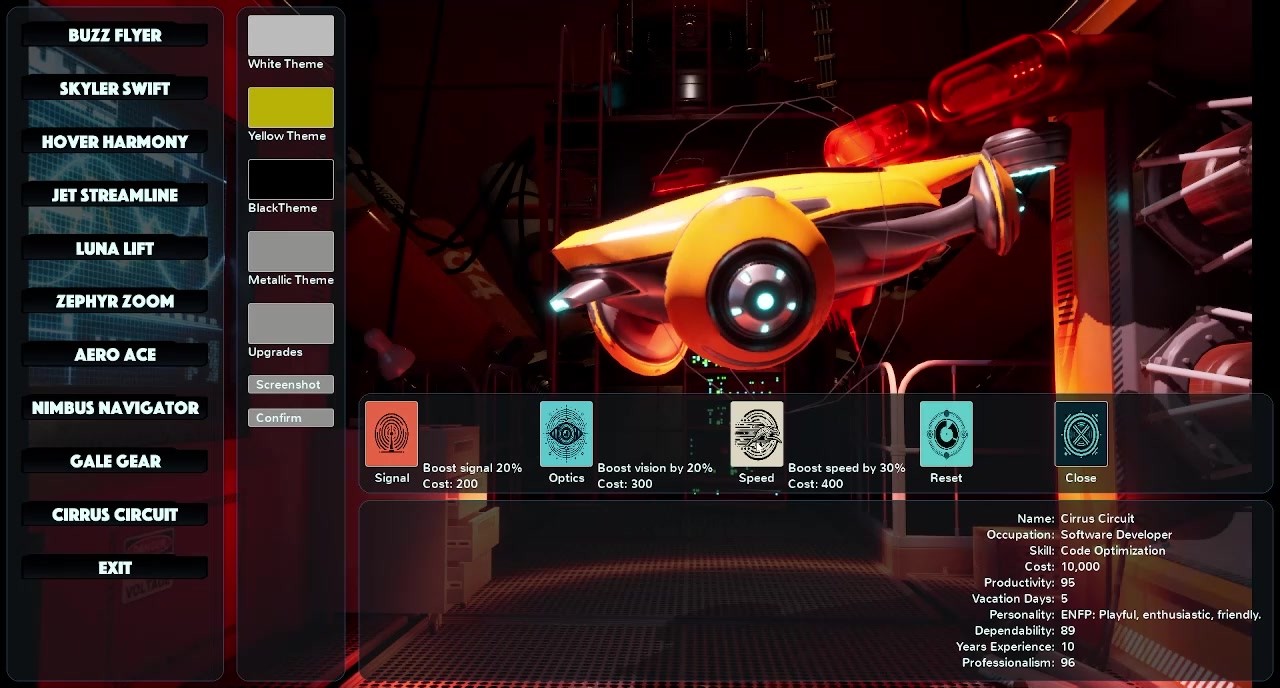
Selecting a model swaps the displayed mesh. Color and material themes update the active look without leaving the inspect view. Upgrade choices spawn additional meshes onto the vehicle. Rotation is driven by mouse hover or by Common UI focus plus the right thumbstick, so the same inspect loop works on a kiosk with a mouse and on a controller.
The drone meshes and industrial hangar environment were sourced from the Unreal Marketplace. The custom work is the configurator itself: Common UI menus, mesh and material state, upgrade attachment, and the dual mouse/gamepad inspect path.
Gallery
UE5 Configurator Demo
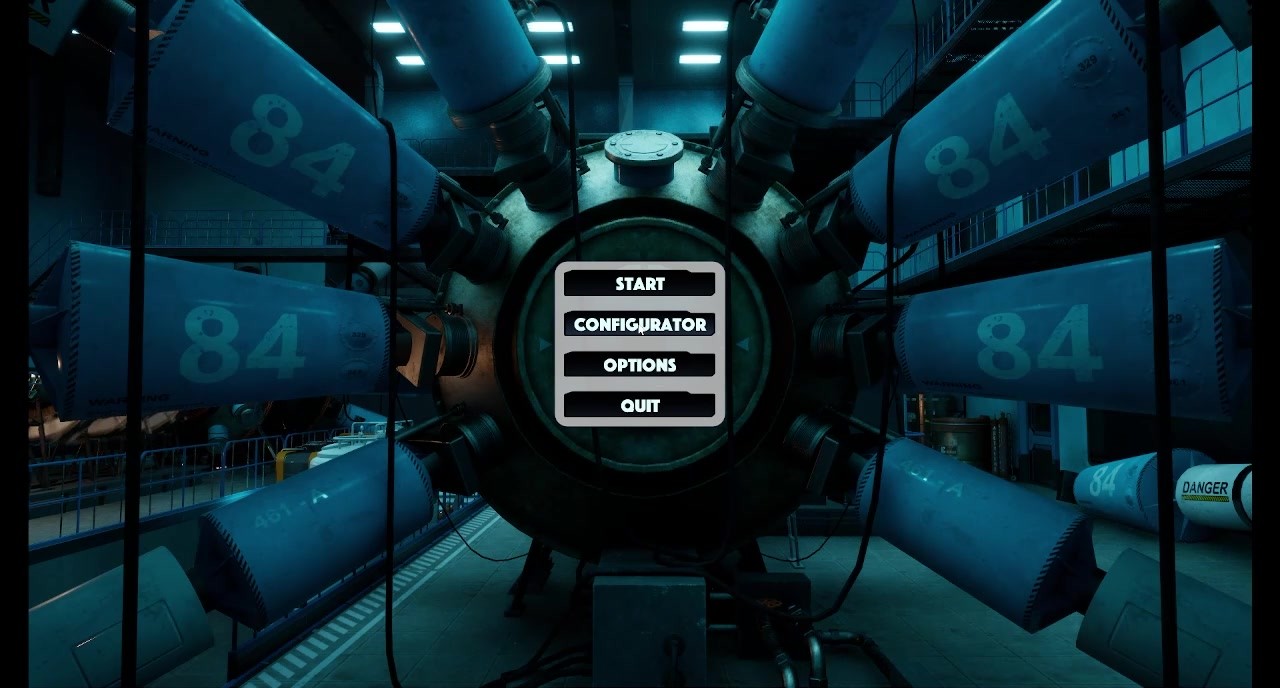
Main Menu — Common UI
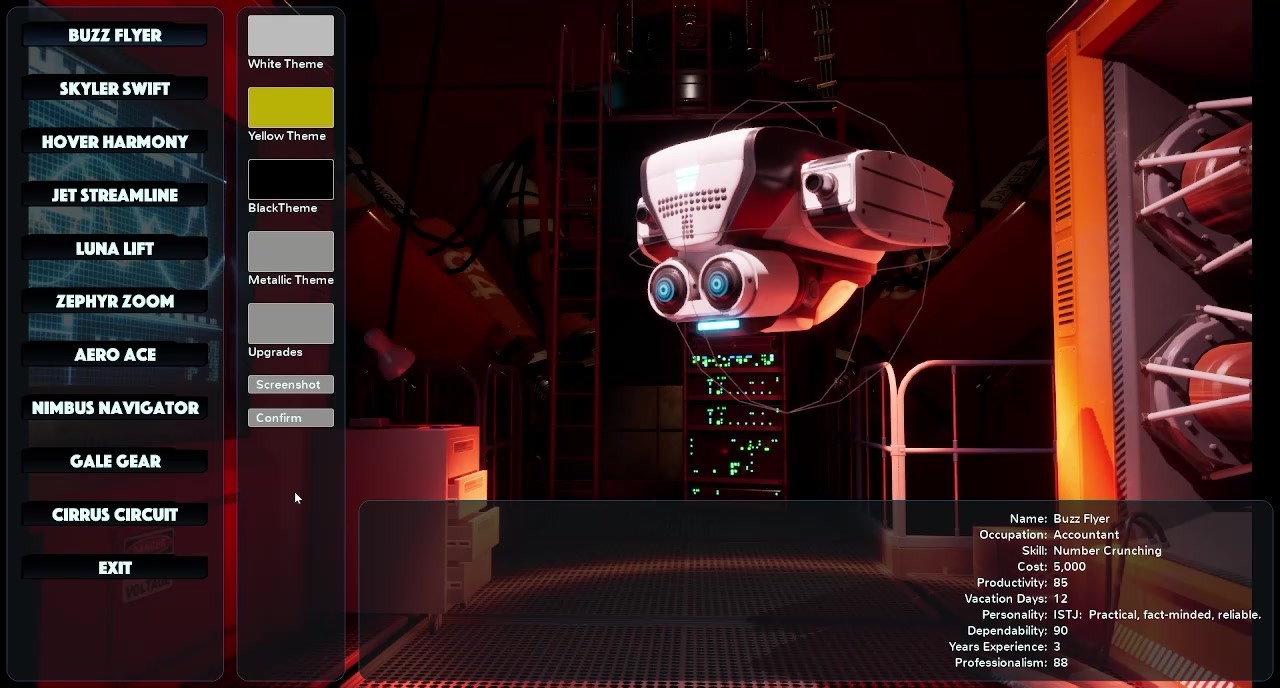
Buzz Flyer — Mesh Switch
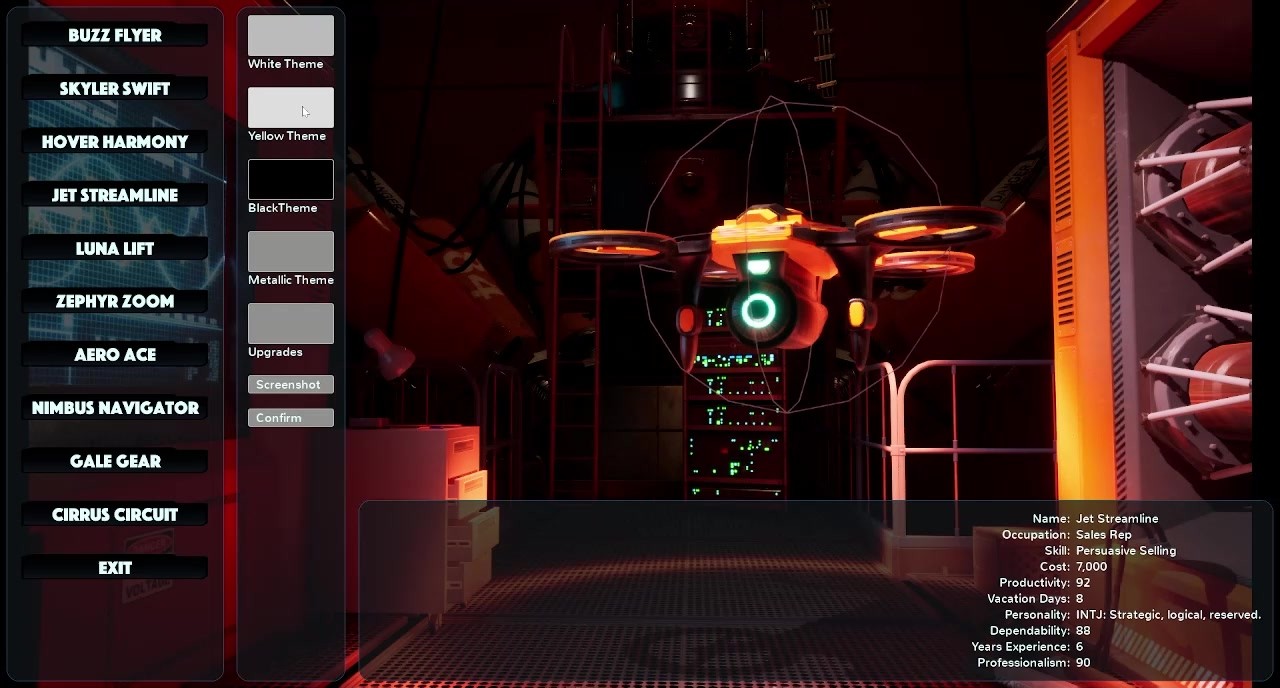
Jet Streamline — Mesh Switch
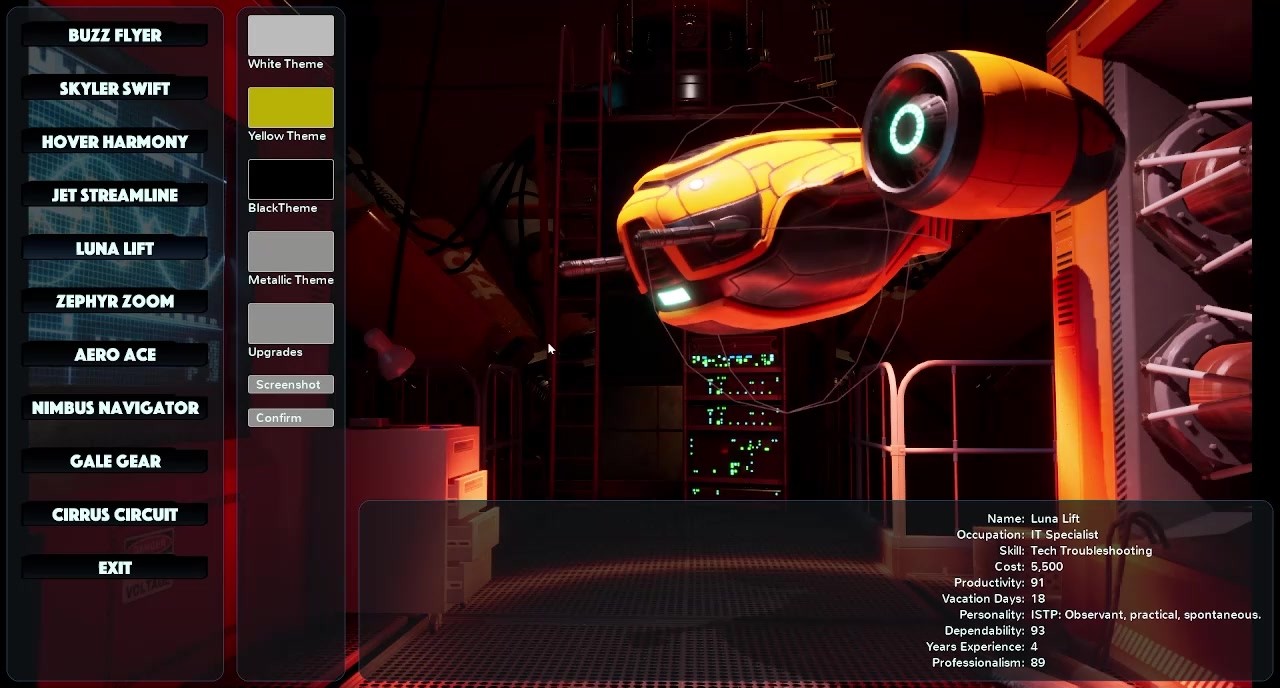
Luna Lift — Yellow Theme
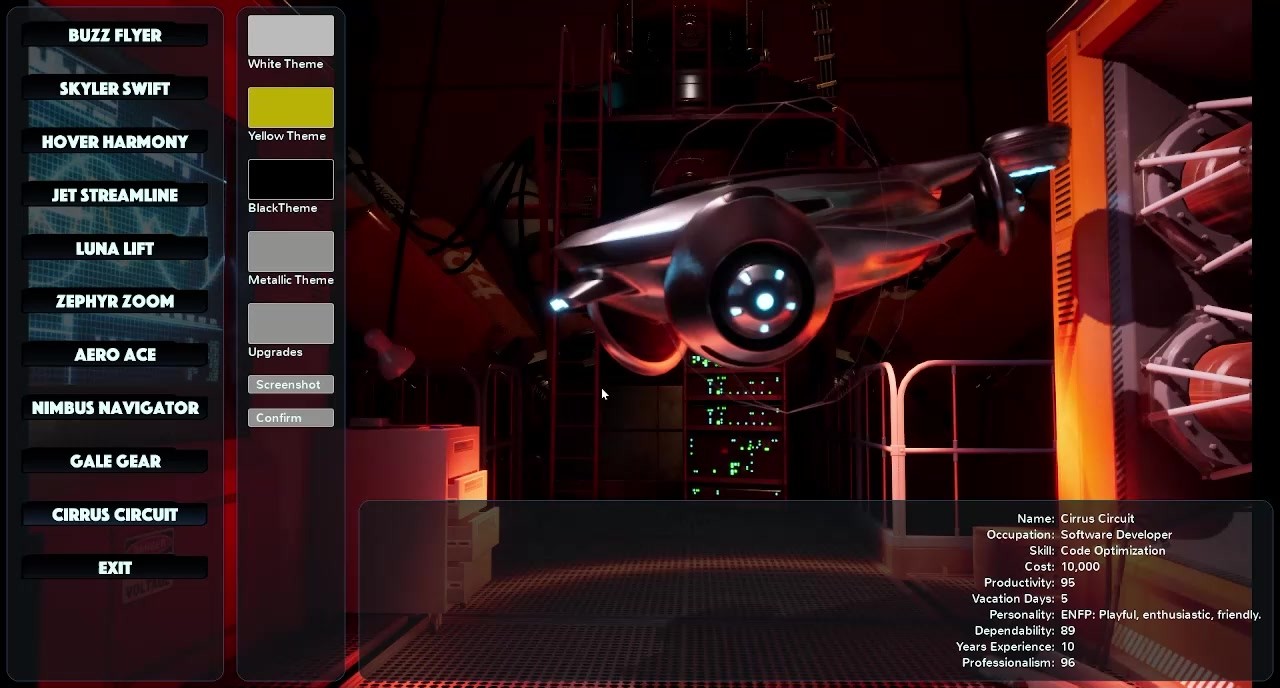
Cirrus Circuit — Metallic Theme
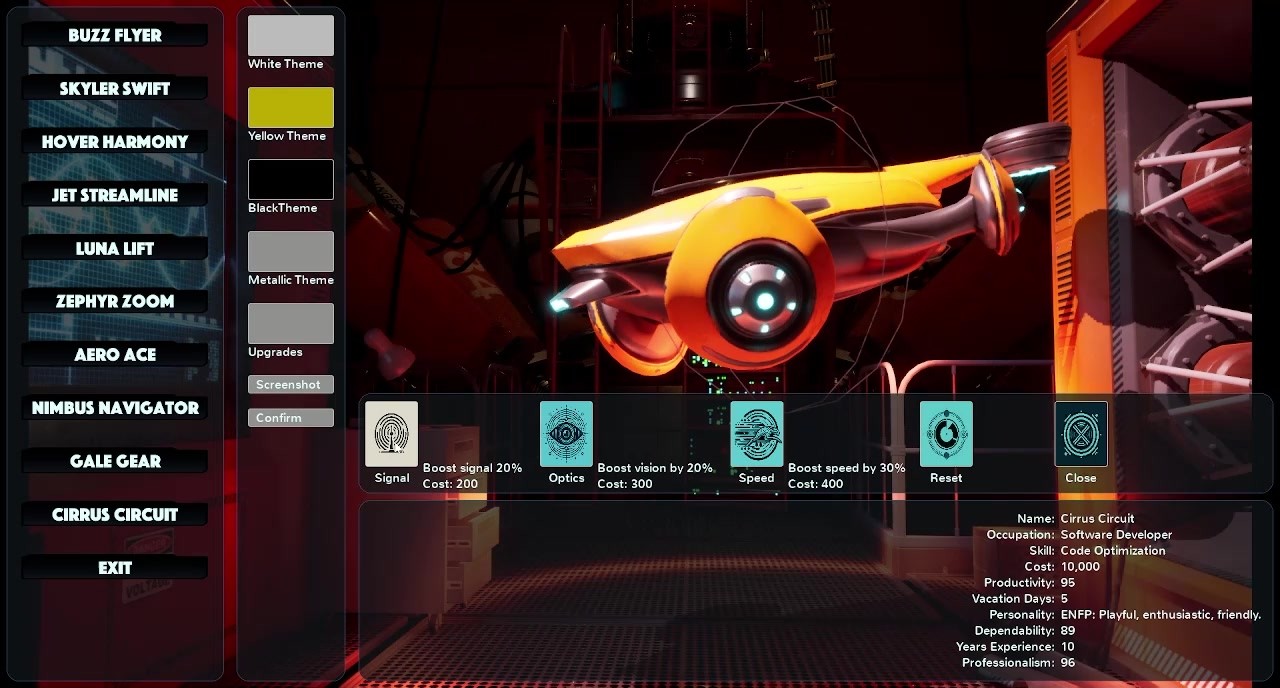
Upgrade Selection
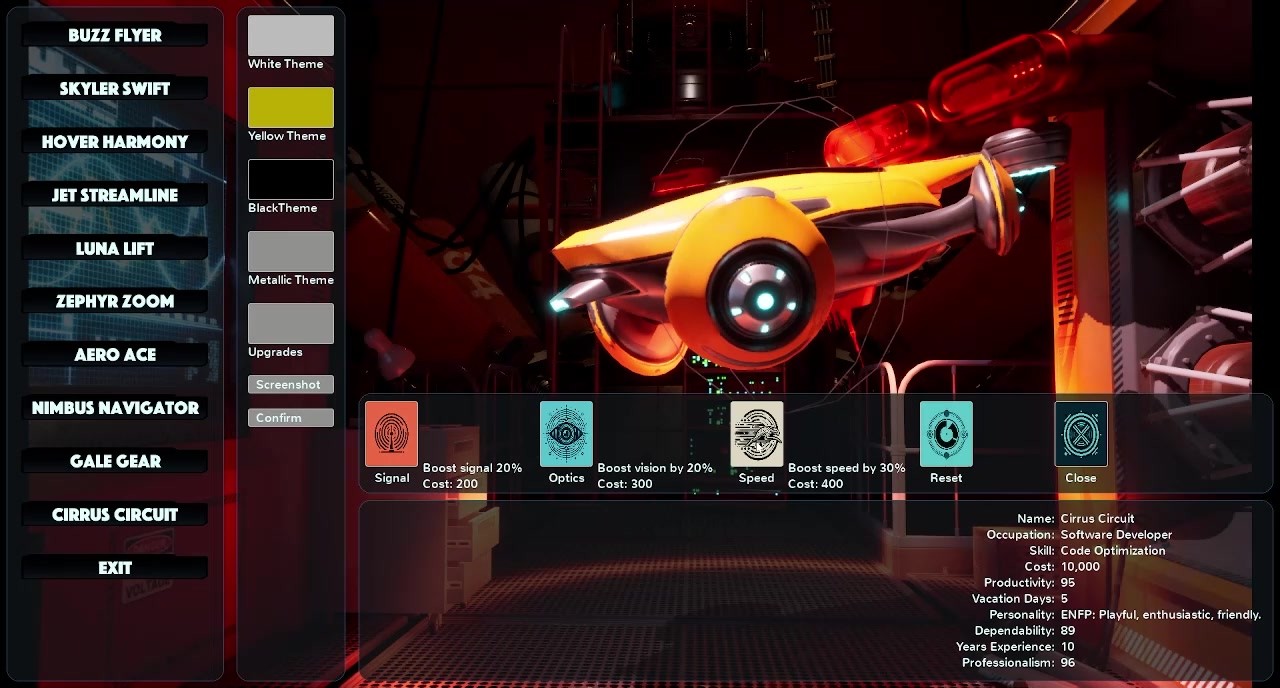
Signal Upgrade — Added Mesh
Case Study
The Problem
A student was building a production configurator for a trade show and was stuck on the same cluster of Unreal problems that look simple on a feature list: swap meshes cleanly, keep material states coherent, add upgrade geometry when an option is selected, and let the player inspect the result with either a mouse or a gamepad. Those systems have to feel like one product, not four disconnected prototypes.
Design Challenge
A floor demo fails if the inspect loop breaks when the input device changes. Hover-to-rotate is natural on a mouse. Gamepad users need focus plus the right stick. Common UI has to keep those paths on the same widgets. Upgrade meshes also have to attach to whichever vehicle is currently displayed without fighting the material state or the orbit.
Key Design Decisions
I built a small, complete configurator instead of a slide deck of isolated examples. Marketplace drones and a hangar environment stood in for the student's product art so the lesson stayed on systems. Model buttons switch the displayed mesh. Theme buttons change color and material states. Upgrade buttons spawn additional meshes. Rotation is bound to mouse hover and to Common UI focus with the right thumbstick so the inspect behavior stays the same on both devices.
Outcome
The demo is a working reference for the interaction layer a trade-show configurator needs: mesh switching, material states, upgrade attachment, and a shared mouse/gamepad inspect loop built on Common UI. The student could take those patterns into the production application instead of reverse-engineering them from a finished booth build.
Technical Highlights
Mesh Switching
A left-rail model list swaps the displayed vehicle immediately. Each selection loads its mesh into the hangar inspect slot and updates the data card so the player always sees the active configuration.
Hover and Gamepad Orbit
The vehicle rotates from mouse hover or from Common UI focus plus the right thumbstick. The same inspect path works for a mouse kiosk and for a gamepad without a separate camera mode.
Upgrade Meshes
Upgrade picks such as Signal, Optics, and Speed attach extra meshes to the active vehicle. The added parts stay with the current model so the configuration reads as one assembled product, not a disconnected UI choice.
Color and Material States
White, yellow, black, and metallic themes swap material states on the current mesh. Finish changes do not reset the selected model, the orbit, or any attached upgrades.
Common UI
Menus, focus navigation, and widget state run through Common UI so mouse hover and gamepad focus stay aligned. That is the layer a trade-show build needs if the floor hardware might be a mouse, a controller, or both.
Marketplace Art, Custom Systems
Drone meshes and the industrial hangar came from the asset store so the demo could spend its time on interaction instead of content production. The reusable piece is the configurator logic, not the kit art.